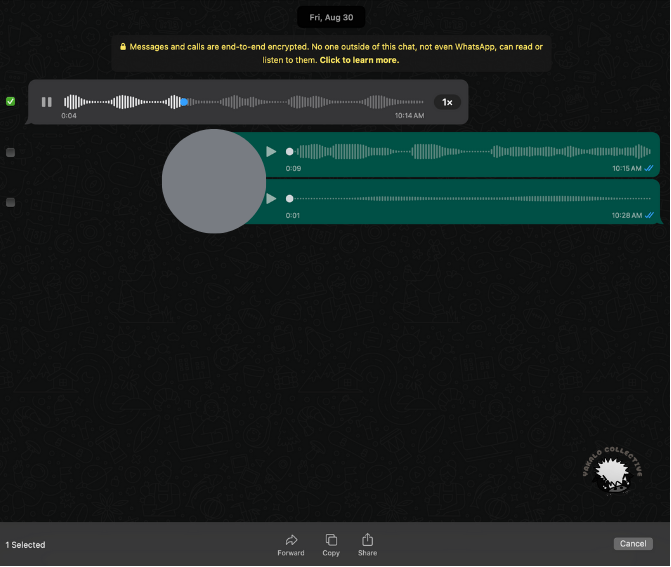
WhatsApp is the most popular messaging app around the world with 1.6 billion users. WhatsApp is great for texting and sending voice messages! It has a lovely pause button and will play one message after the other automatically. WhatsApp also lets you easily download your voice messages or forward them within the app to others.
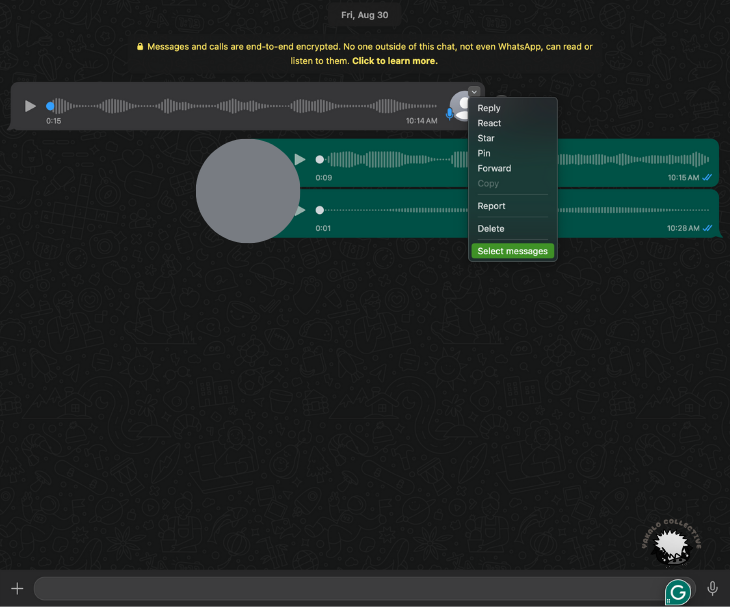
Today, I will be demonstrating how to download a voice message from WhatsApp and upload it to Dito. In the image below, you can see voice messages, and if you look at the grey voice message on the left side of the screen, it has an arrow icon in the top-right corner of the message box. Click on the downward arrow icon, and a box of options will appear. Click on “Select messages.”
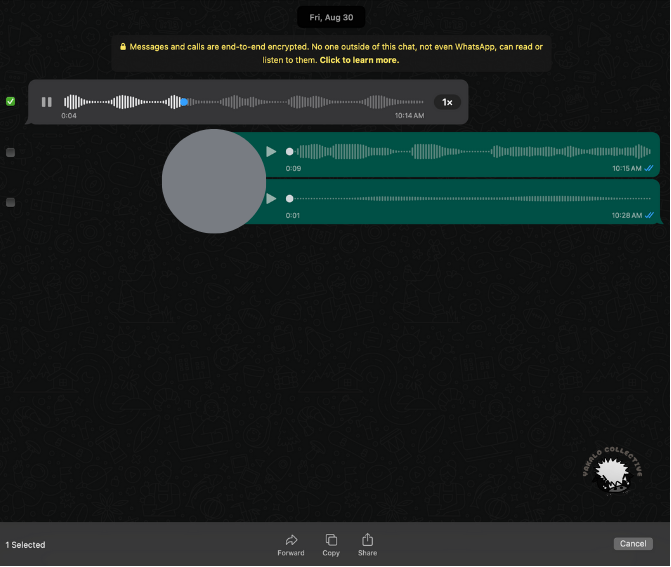
After clicking “Select messages,” three options will appear at the bottom of the chat: Forward, Copy, and Share. To save the audio file, press “Copy,” then open your computer’s file manager, navigate to where you want to save the file on your computer, and press “CTRL + V” or “Command + V” or right-click and press “Paste” to paste the file there.
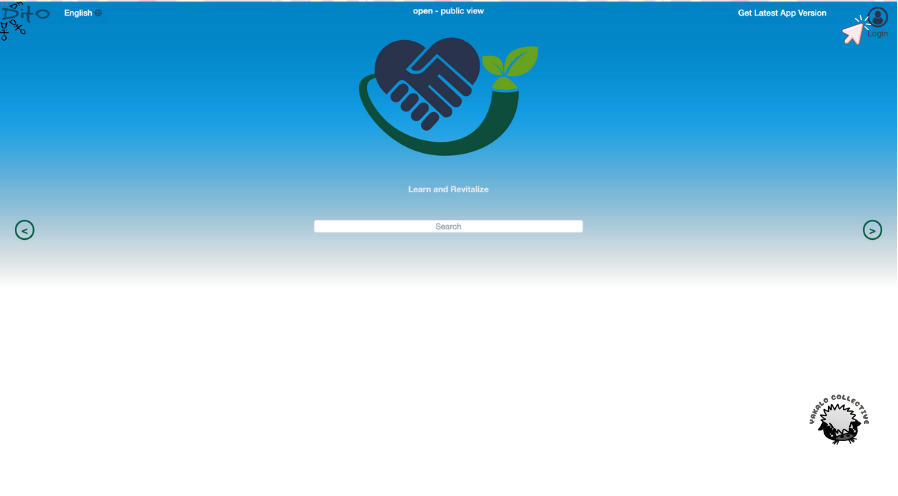
Then, go to Dito and login.
Click ‘Contribute Audio’ on the left-hand of the screen.
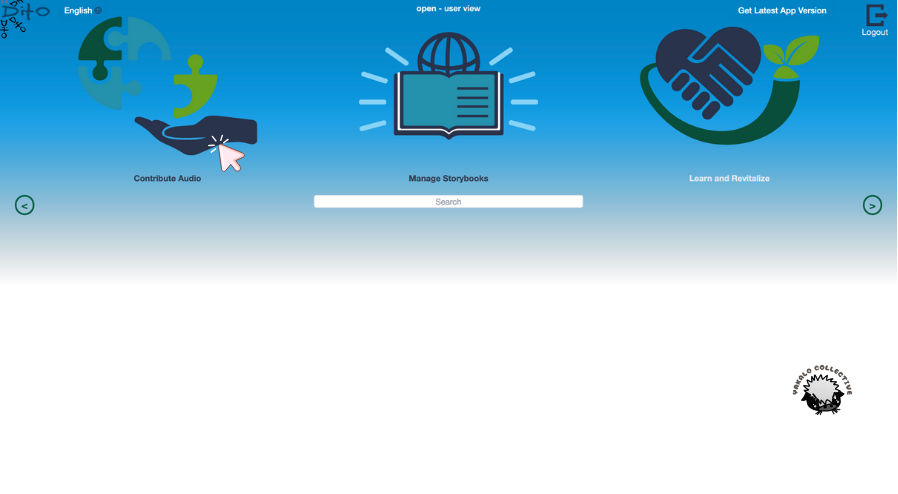
A box will appear below, where you can choose which file to upload by pressing “Browse.”
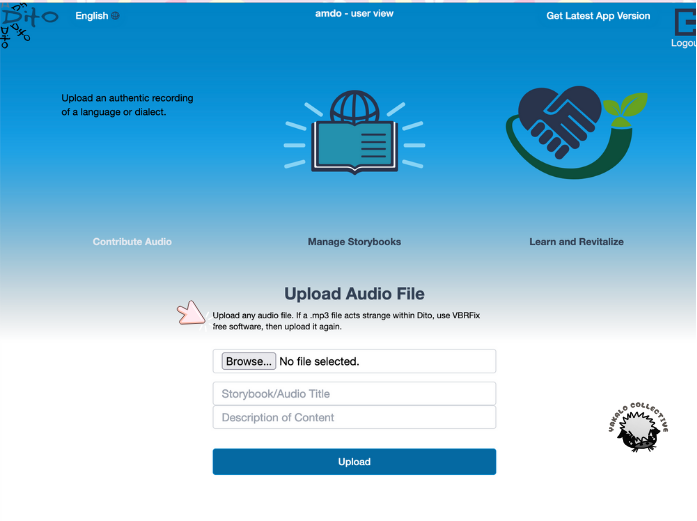
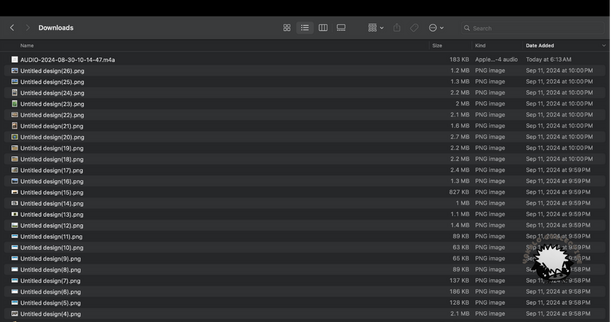
After pressing Browse, navigate to the folder or location of the file on your computer, highlight the file name, and press “Upload.”
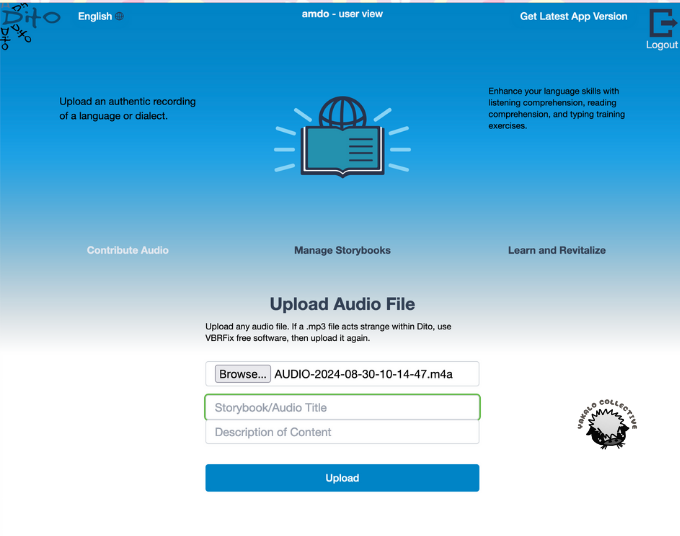
You will see the name of your WhatsApp audio file appear. You can write the title of the file and a description of the file as well, then press “Upload.”
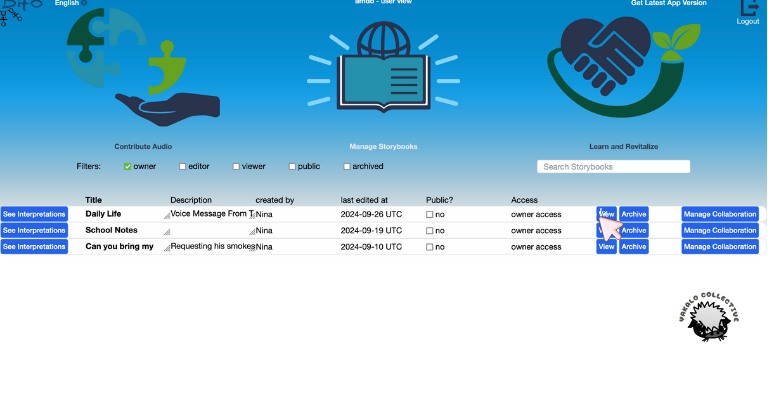
A screen like the one below will appear, showing all of the audio files you have contributed. To start transcribing/translating/annotating/interpreting your audio file, click “View.”
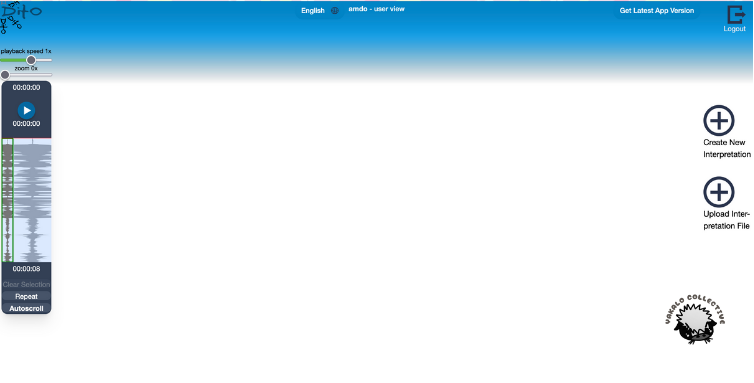
Once you see the screen below, click “Create New Interpretation,” and you can Scribe away!

Leave a Reply