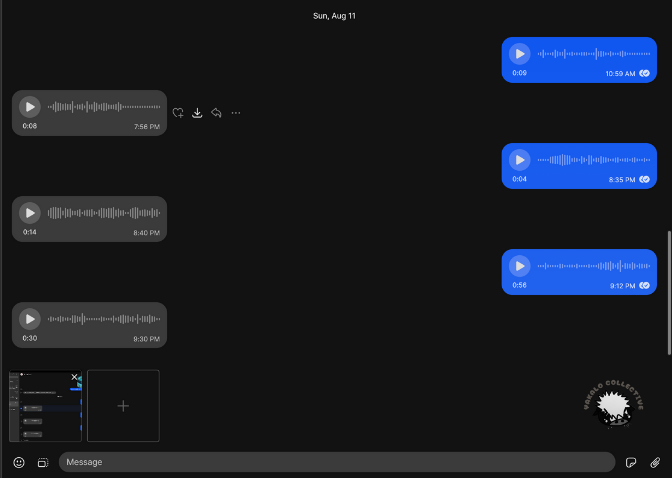
Signal is a niche end-to-end encrypted messaging app that was created by the non-profit The Signal Foundation. Signal currently has 40 million active users worldwide. Signal is great for texting and for sending voice messages! It has a lovely pause button and will play one message after the other automatically. Signal also lets you easily download your voice messages or forward them within the app to others.
Today, I will demonstrate how to download a voice message from the Signal app and upload it into Dito. In the image below, you will see voice messages, and if you look at the grey message boxes on the left side of the screen you should see four icons: a react icon, a download icon, a reply icon, and three dots. If you click on the download icon, a box will pop up with the file name asking if you want to download the file and where you would like to save it.
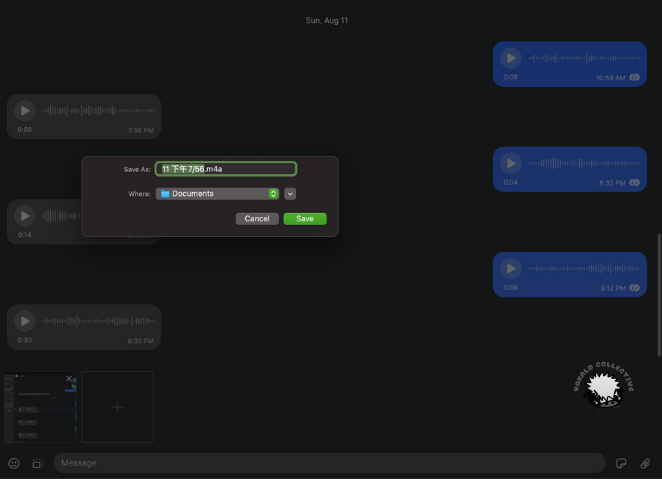
In the image below, see that I can change the name of the file–though right now I will leave it as it is. My messages are named in Chinese, but yours may be named in another language. Select the folder where you want it to be saved and click “Save.”
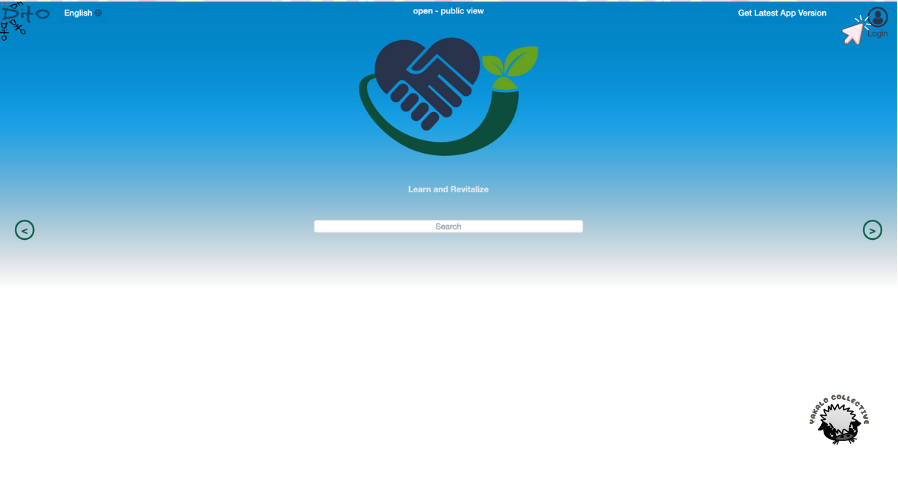
After clicking Save, go to Dito and login.
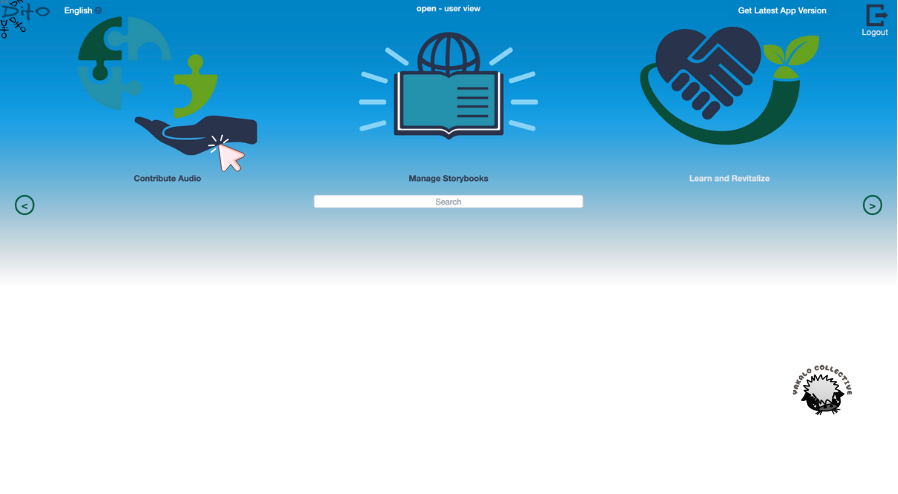
Navigate to the ‘Contribute Audio’ icon on the left of the screen and click on it.
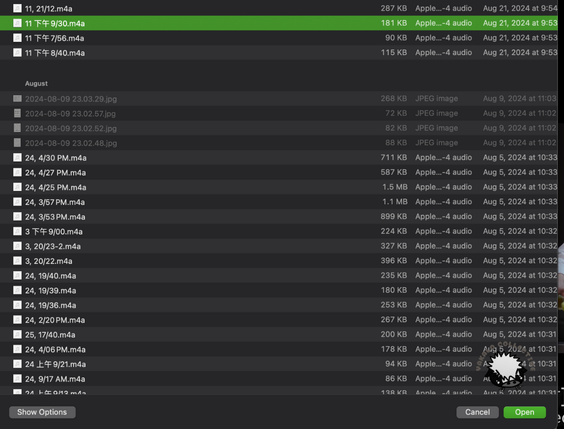
A box will appear wherein you can upload your audio file from Signal. Click on “Browse” and navigate to the folder on your computer where you saved the file.
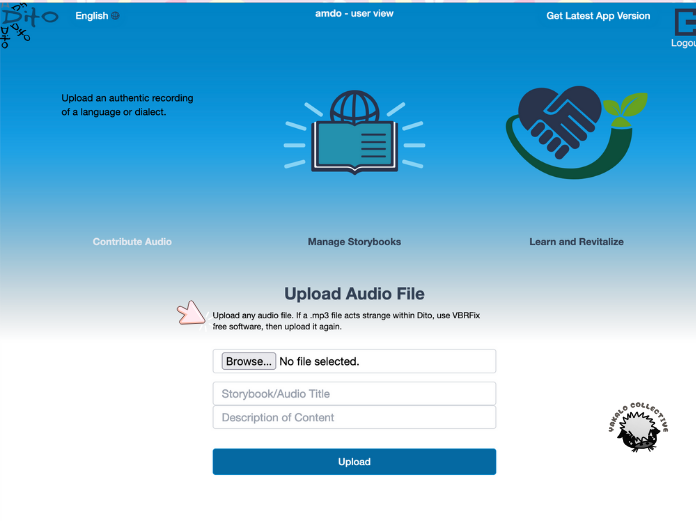
Next, click on the file you would like to upload and press “Upload.”
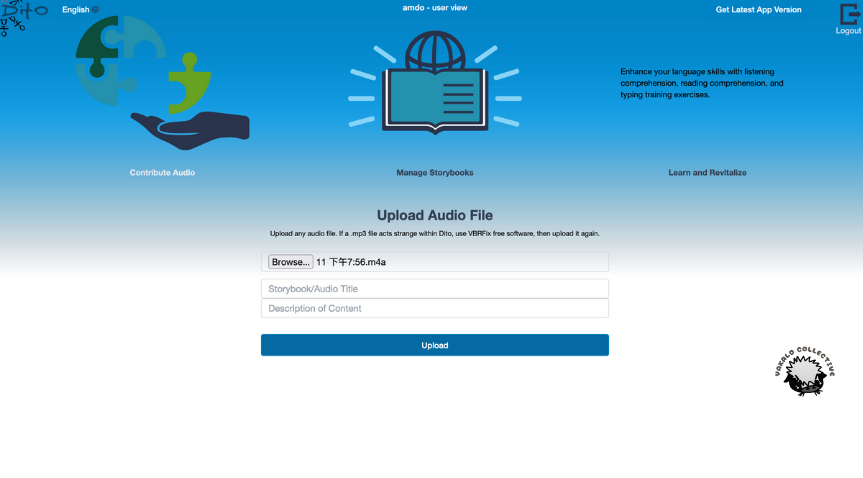
The file will appear beside the Browse button, as in the picture below. You should now title the audio and give a brief description of it.
Once you press “Upload,” you will be brought to the screen below, where you can see the audio files you have contributed. Click on “View” to start annotating it.
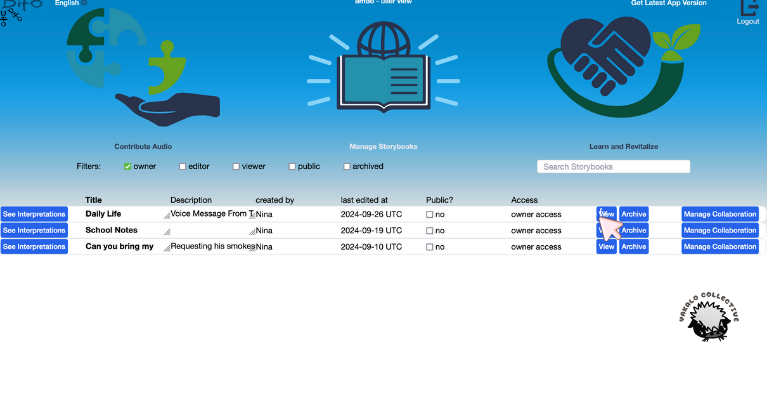
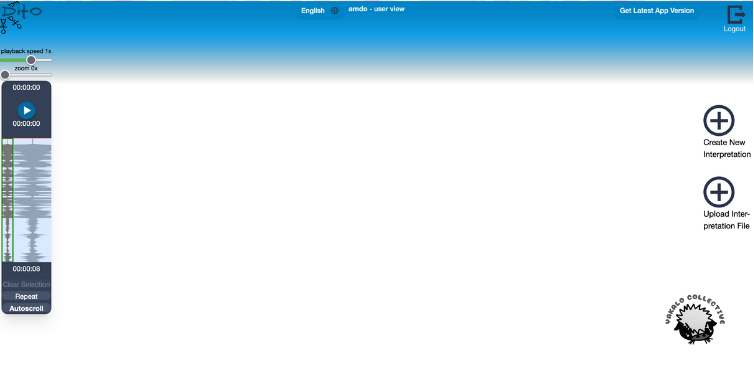
Now, you are all set to click “Create New Interpretation” and start Scribing in Dito!

Leave a Reply